Open it
- Go to the editor in Chrome, Edge, Safari or Firefox on a computer.
- Drag the .psd onto the page, or choose File › Open and pick it.
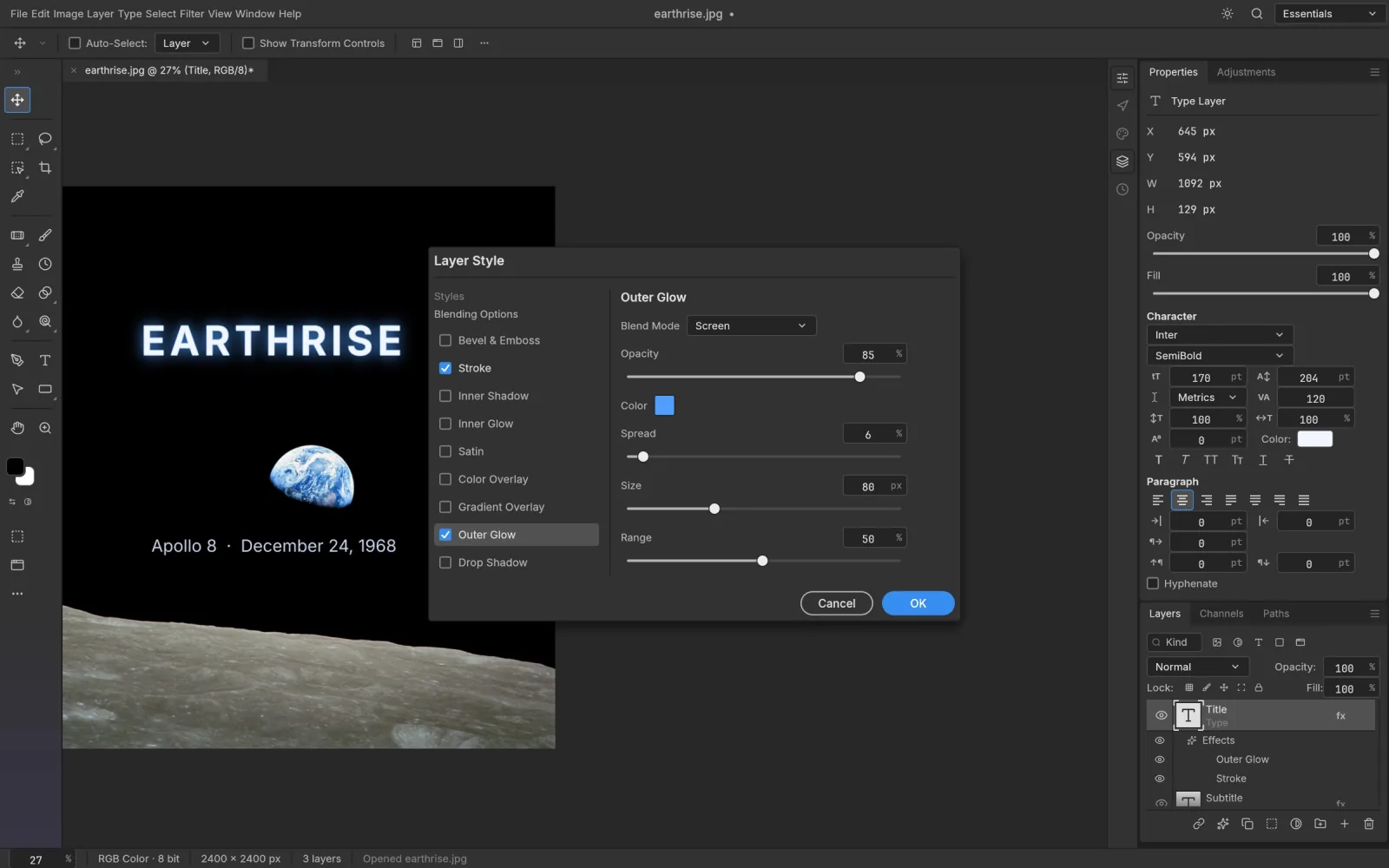
- The document opens with the Layers panel on the right.
The file is read from your disk by the browser. It isn't uploaded anywhere.
Just need a PNG or JPG?
Choose File › Export › Export As. You can set the format, the quality, the scale and whether to keep transparency, with a preview and an estimate of the file size before you commit.
To export a single element, such as a logo or an icon, select its layer and use Layer › Quick Export as PNG.
Looking inside the file
Opening a PSD properly is useful even when you don't plan to edit it:
- Switch layers on and off to see how the design is built.
- Click a type layer to read or copy its text.
- Sample exact colours with the Eyedropper.
- Check pixel dimensions under Image › Image Size.
Developers handed a design file can pull out every asset this way without asking the designer for exports.
What's supported
RGB, Grayscale, CMYK and Lab documents open at 8, 16 and 32 bits per channel. Layers, groups, masks, adjustment layers, layer styles, Smart Objects, shape layers and type layers all arrive editable.
One caveat: the browser build has two fonts. Text set in other typefaces may look different from the original.
If it won't open
- The tab runs out of memory. Close other tabs and try again. Very large documents need a machine with plenty of RAM.
- The download was cut short. A truncated PSD can't be read. Fetch the file again.
- The canvas is blank. Open the editor with WebGL2, which works around some graphics drivers.
When you're ready to change things, the PSD editing guide picks up from here.